
Pràctica · Guia pas a pas
🔴-Inbox setup with labels (English)
Today, we set up some labels in Gmail to keep the inbox organized and to enable faster searches.
Eines
Gmail
Nivell
Must
Pas 01
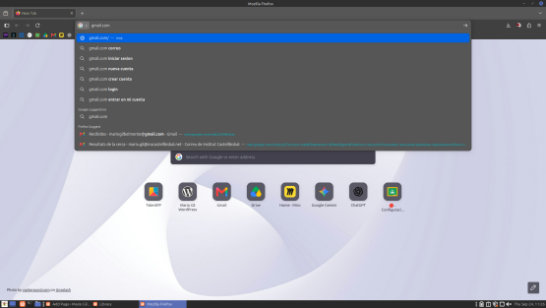
1.- Open Gmail
There are many ways to access Gmail, but the main one is by entering ‘gmail.com’ into the search bar of your browser.
Pas 02
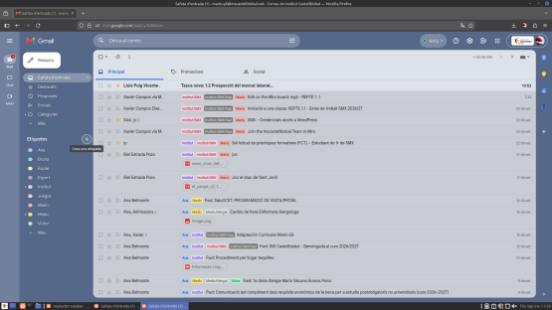
2.- Add a label
Then, a ‘+’ appears on the left side, where you can add a label with its name.
Pas 03
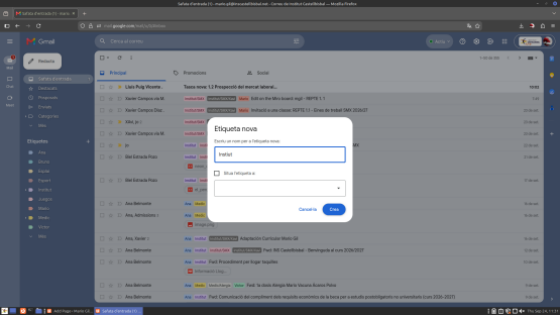
3.- Name the label
Once inside, the following appears: the label name and the location where you want to place it; essentially, you need to add the name but leave the location field blank.
Pas 04
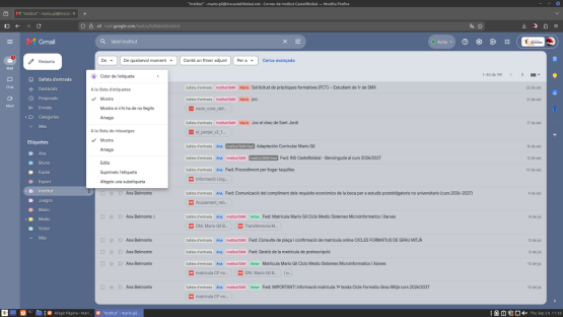
4.- Change the color and add a sub-label
Once the label has been created, you can change its color and add a sub-label by clicking the three dots next to the label (from the previous step).
Pas 05
5.- Select the email
The most important step in adding a label to a Gmail message is to click the box on the left.
Pas 06
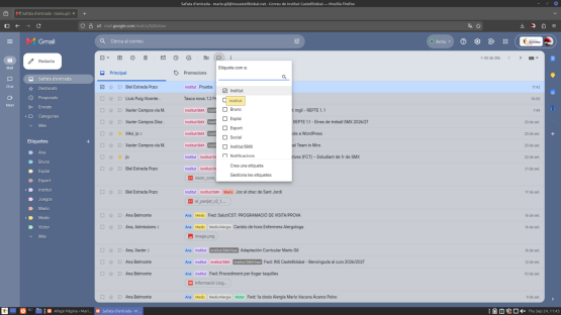
6.- Apply the label
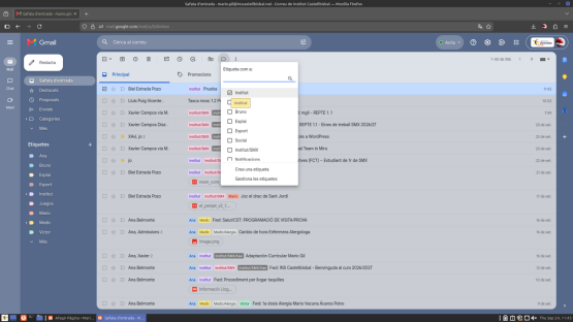
Then, go to the top where the tag icon is and add the chosen tag and/or sub-tag.
Què he après
Assigning labels to each email keeps your Gmail organized and also speeds up the process of finding them.
Parlem?
Escriu-me o truca’m si vols saber més sobre les meves pràctiques.
Contacta’m
Sobre mi
Mario Gil Belmonte
Estudiant de 1r de SMX a l’Institut Castellbisbal.
Idiomes
Castellà, català i anglès
Contacte
mariogilbelmonte@gmail.com
671 620 436